
Losing photos and important files can happen more easily than many people expect. A damaged computer, lost phone, failed hard drive, accidental deletion, or household incident can make valuable data difficult or impossible to recover.
A backup is an extra copy of your files stored somewhere separate from the original. With a simple backup plan, you can protect family photos, school documents, creative projects, work files, and other important information.
Start by deciding what to back up
Before choosing a storage method, make a list of the files you cannot easily replace. These may include:
– Photos and videos
– Personal documents
– Tax and household records
– School or work projects
– Music and creative files
– Contacts and calendars
– Saved messages or notes
– Website files and other digital projects
You may not need to back up every downloaded file. Software installers, temporary files, and streaming content can usually be downloaded again. Focus first on files that are personal, valuable, or difficult to recreate.
It can also help to organize your files before backing them up. Create clear folders such as “Photos,” “Documents,” “Videos,” and “Projects.” Consistent file names and folders make it easier to find items later.
Use the 3-2-1 backup approach
A useful way to build a backup plan is the 3-2-1 method:
– Keep at least three copies of important files.
– Store those copies on at least two different types of storage.
– Keep at least one copy in a different location.
For example, you might keep the original photos on your computer, a copy on an external drive, and another copy in cloud storage. This protects your files from several problems at once. If your computer stops working, the external drive may still be available. If a local problem affects both devices, the cloud copy can provide another option.
The 3-2-1 approach is a guideline rather than a strict rule. The right plan depends on the amount of data you have, how often it changes, and how much convenience you want.
Back up files to an external drive
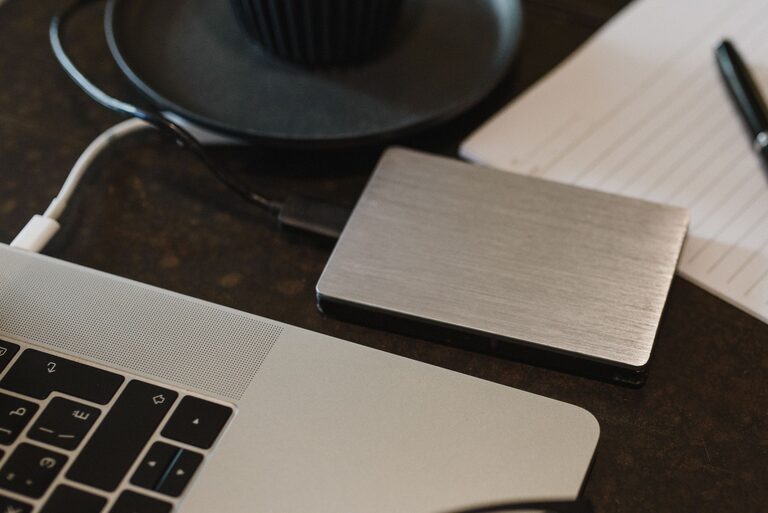
An external hard drive or solid-state drive is one of the simplest ways to create a local backup. These devices connect to a computer by cable and can store large amounts of data.
To use an external drive:
- Choose a drive with enough space for your current files and future additions.
- Connect it to your computer.
- Copy important folders to the drive, or use the computer’s built-in backup feature.
- Safely eject the drive when the backup is complete.
- Store the drive in a secure place away from your computer.
A backup drive should not remain connected all the time if you do not need it. Keeping it disconnected can help protect the backup from accidental deletion, hardware problems, and some types of unwanted software.
Label the drive with its purpose and the date of the latest backup. If you have more than one drive, rotate them so that one copy can be stored in a separate location.
Use cloud storage for convenience
Cloud storage keeps your files on remote servers that you access through the internet. It is useful for automatic syncing, sharing, and protecting files if your computer or phone is lost.
Many cloud services can automatically upload photos from a phone. They may also back up selected computer folders. When choosing a service, consider:
– Available storage space
– Monthly or yearly cost
– Automatic backup options
– Support for your devices
– File recovery features
– Privacy and security settings
– Ease of downloading your files
Cloud storage is convenient, but it should not always be your only backup. A full account, a forgotten password, an internet outage, or a change in service terms could make access difficult. For especially important files, keep an additional copy on a local drive.
Remember that syncing is not always the same as backing up. If you delete a file in a synced folder, the deletion may also appear on other devices. Look for a service feature that keeps older versions or deleted files for a period of time.
Protect photos from your phone
Phones often contain years of photos, so setting up automatic photo backup is an important step. Check your phone’s photo app and account settings to confirm that automatic uploads are enabled.
After turning on photo backup:
– Connect the phone to Wi-Fi regularly.
– Keep the photo app updated.
– Check that new photos appear in your online library.
– Review storage limits before they are reached.
– Avoid deleting photos from the phone until you confirm they are safely uploaded.
– Export or download important albums occasionally.
If you use more than one phone or camera, decide where all photos will be stored. You may want one main photo library on a computer or cloud service, with a separate copy on an external drive.
Create an automatic backup schedule
Backups work best when they happen regularly without relying entirely on memory. Choose a schedule based on how often your files change.
For example:
– Daily: automatic phone photo uploads
– Weekly: computer or external drive backup
– Monthly: review the backup and check available storage
– Every few months: test file recovery and update your backup plan
If you create or edit files every day, use an automatic tool that runs in the background. If your files change less often, a weekly or monthly routine may be enough.
Add a reminder to your calendar if any part of the process is manual. A short, consistent routine is more useful than an ambitious plan that is difficult to maintain.
Check that your backups work
Creating a backup is only the first step. You should also check that the files can be opened and restored.
Once in a while, choose a few files from your backup and open them. Check different file types, such as photos, documents, videos, and spreadsheets. You can also practice restoring a folder to another location. This helps you understand the process before you need it.
Watch for warning signs such as:
– The backup stops before finishing
– Files have unusual sizes
– Photos cannot be opened
– The storage device makes unusual sounds
– The backup service shows an error
– The drive is nearly full
Replace an external drive if it becomes unreliable or shows repeated errors. Storage devices do not last forever, so plan to move your files to a new device before the old one fails.
Protect your backup accounts and devices
Use strong, unique passwords for cloud storage accounts. If available, turn on two-step verification for an additional sign-in check. Keep recovery information up to date so you can regain access if you forget your password.
You can also protect local drives with a password or encryption feature provided by your operating system. This is especially useful if the drive contains personal documents or is carried outside your home.
Avoid storing all copies in the same place. A computer and external drive kept side by side could both be lost or damaged at the same time. Keep one copy with a trusted person, in a secure location, or in cloud storage.
Make your backup plan simple
The best backup plan is one you will actually use. Start with the files that matter most, set up automatic photo uploads, and create a regular computer backup. Then add a second local or off-site copy as your needs grow.
Review your plan when you buy a new device, change cloud services, or create a large collection of photos and files. With a few dependable habits, you can reduce the risk of losing memories and important work.
