
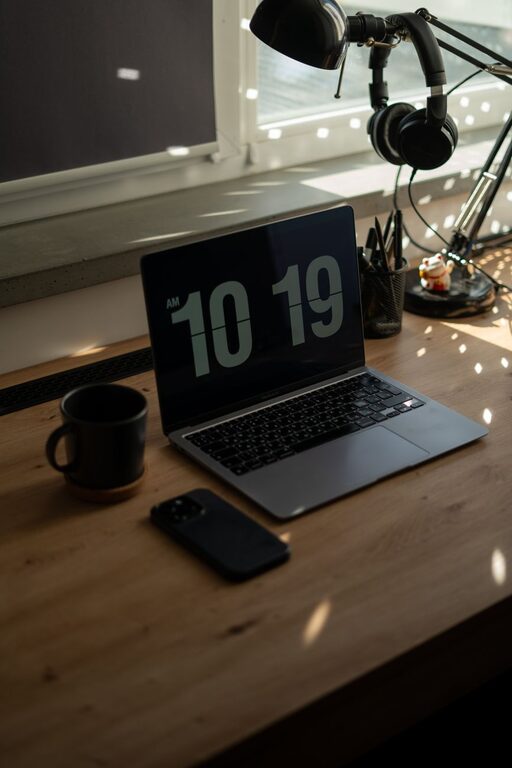
Screens are part of everyday life. We use computers for work, phones for communication, tablets for reading, and televisions for entertainment. While screens are not usually harmful when used responsibly, long periods of viewing can leave your eyes feeling tired, dry, or uncomfortable.
The good news is that a few practical changes can make screen time easier on your eyes. Your setup, viewing habits, lighting, and breaks all play an important role.
Follow the 20-20-20 rule
One of the simplest ways to reduce eye strain is to take regular distance breaks. Try the 20-20-20 rule:
– Every 20 minutes
– Look at something about 20 feet away
– For at least 20 seconds
Looking into the distance gives your eyes a chance to relax after focusing on a nearby screen. You can look out a window, across the room, or down a hallway.
If you often forget to take breaks, set a gentle timer or use a screen reminder app. Some computers and phones also include built-in tools that encourage regular pauses.
Adjust your screen position
The way your screen is positioned can affect comfort, posture, and viewing distance. A few small adjustments can make a noticeable difference.
For a desktop monitor:
– Place the screen about an arm’s length away.
– Position the top of the screen at or slightly below eye level.
– Keep the display directly in front of you.
– Tilt the monitor slightly upward or downward to reduce reflections.
For a laptop, raising the screen to a more comfortable height can help prevent neck strain. If you raise the laptop, consider using a separate keyboard and mouse so your hands and shoulders stay in a natural position.
For phones and tablets, try to avoid holding the device extremely close to your face. Use a stand when reading or watching content for a longer period.
Reduce glare and reflections
Glare from windows, overhead lights, and shiny surfaces can make your eyes work harder. It may also encourage you to squint or lean closer to the screen.
To reduce glare:
– Place your monitor away from direct sunlight.
– Turn the screen so it is not directly facing a window.
– Use curtains or blinds when sunlight is strong.
– Choose matte screen surfaces when possible.
– Clean the screen regularly with a suitable soft cloth.
– Adjust room lighting instead of relying on a very bright display.
Avoid working in a completely dark room with only the screen providing light. A small lamp or soft background light can create a more balanced environment.
Set comfortable brightness and contrast
A screen that is too bright or too dim can be uncomfortable. The best setting depends on the room, the time of day, and the content on the screen.
As a general guide, your screen should not look like a bright light source compared with the surrounding room. Adjust the brightness until text is clear without appearing harsh. Increasing contrast can also make reading easier, especially when working with small text.
Many devices offer an automatic brightness feature. This can be useful, but check the setting occasionally to make sure the screen remains comfortable in your current surroundings.
Make text easier to read
Small text can cause you to squint or move closer to the screen. Instead of leaning forward, increase the text size or page zoom.
Useful options include:
– Browser zoom controls
– Larger system font settings
– High-contrast display modes
– Reader modes for articles
– Larger icons and menus
– Clear, easy-to-read fonts
If you regularly read long documents, adjust the document view to a comfortable size before you begin. This is often more effective than trying to maintain focus on tiny text for a long time.
Remember to blink
People often blink less frequently when concentrating on a screen. Reduced blinking can make your eyes feel dry or tired.
Make a habit of blinking fully and regularly, especially while reading, gaming, or working with detailed information. During a break, close your eyes for a few seconds and relax your face.
Air movement can also contribute to discomfort. If possible, avoid sitting directly in front of a fan, heater, or air-conditioning vent. Keeping the air from blowing directly toward your face may make screen sessions more comfortable.
Take movement breaks
Eye comfort is closely connected to overall comfort. Sitting in one position for hours can lead to stiff shoulders, a sore back, and poor posture.
During screen breaks:
– Stand up and walk around.
– Roll your shoulders gently.
– Stretch your arms and hands.
– Look away from nearby objects.
– Drink some water.
– Change your position before returning to work.
Short, frequent breaks are often easier to maintain than one long break at the end of the day. You can connect them to natural pauses, such as finishing an email, saving a document, or completing a meeting.
Use night settings thoughtfully
Many phones, tablets, and computers include night or warm-color settings. These features reduce the amount of cool-toned light produced by the display and may make evening viewing feel more comfortable for some people.
You can schedule these settings to turn on automatically after sunset. Lowering the screen brightness in the evening may also help create a calmer environment before bedtime.
Night settings are not a replacement for breaks or good screen positioning. They are simply another adjustment you can try based on your personal comfort.
Be mindful of contact lenses and personal comfort
If you wear contact lenses, long periods of screen use may feel less comfortable because of reduced blinking. Follow the care instructions provided for your lenses and switch to glasses when appropriate for your routine.
Avoid rubbing your eyes, particularly if your hands are not clean. If your eyes frequently feel uncomfortable during or after screen use, keep a note of when it happens, which device you were using, and how long you had been looking at the screen. This information can help you identify patterns and discuss them with an eye care professional if needed.
Create a screen-friendly workspace
A comfortable workspace can support better habits throughout the day. Keep frequently used items within easy reach, place your screen at a suitable distance, and make sure your chair and desk allow you to sit comfortably.
A simple workspace checklist includes:
– Clear, readable screen settings
– Soft, balanced room lighting
– Minimal glare
– A stable monitor position
– A comfortable viewing distance
– Regular reminders to pause
– Enough space to change position
Know when to seek professional guidance
Occasional tiredness after a long screen session is common. However, ongoing or unusual discomfort should not be ignored. If you regularly experience blurred vision, persistent irritation, headaches, or other changes that concern you, consider arranging an eye examination with a qualified professional.
An eye care professional can provide guidance based on your individual needs, daily activities, and existing eyewear. Good screen habits can support comfort, but they do not replace personalized care.
Make eye comfort part of your routine
Protecting your eyes during screen time does not require complicated equipment. Start with a few consistent habits: use the 20-20-20 rule, adjust your screen position, reduce glare, enlarge small text, blink often, and take movement breaks.
Small changes can add up over the course of a workday or evening. By making your screen environment more comfortable, you can stay focused while giving your eyes regular opportunities to rest.
